
DB-R1SGEN2
Member
- Thread starter
- #1
During my recent round trip from VA to GA, I encountered a warning message that said either “Performance limited. Drive with caution.” or “Performance limited. Service may be required.”
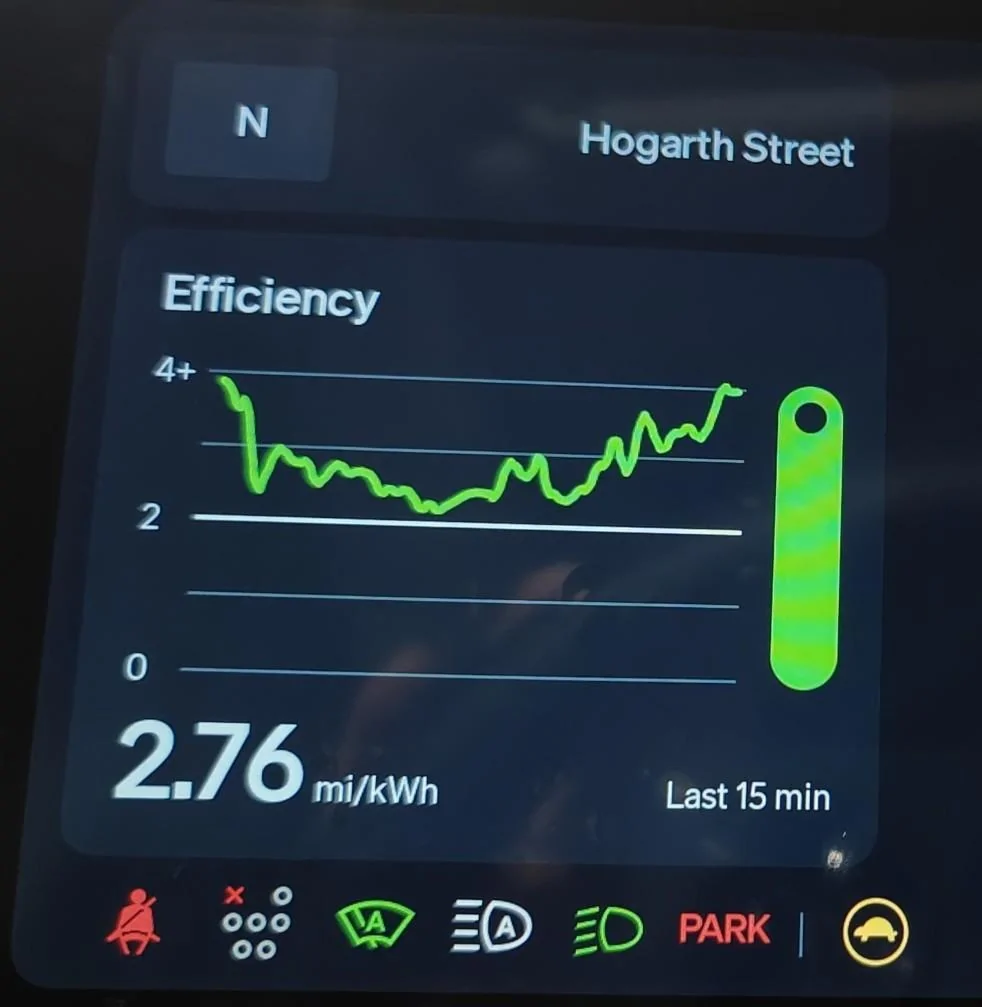
An orange icon of a car inside a circle appeared on the Driver Display (see attached photo).
The first time this warning appeared, I had not yet upgraded to software version 2025.06.30. I was driving on I-85 when the message popped up. My speed was limited to under 50 MPH, and thankfully, I was able to safely exit the freeway. I also noticed that regenerative braking was disabled.
After stopping, I checked the vehicle status screen but didn’t see any indications of motor or battery overheating. I drove around a nearby parking lot to see if the icon would clear—it didn’t. I performed a vehicle reset (press and hold the far-left steering wheel button + hazard light button), and that successfully cleared the error.
While in GA, I upgraded to software version 2025.06.30. Then, with less than 50 miles left on the return trip home, I received the same performance warning again. However, this time there was no noticeable loss of power or regen braking. Still, I chose to disengage hands-free driving mode, just in case regenerative braking failed again.
When I got home, I performed another vehicle reset, and this cleared the warning indicator.
Since I already have a mobile service appointment scheduled for the first week of April 2025, I reported both "Performance Limited" incidents so they could be added to the service ticket. I'm hoping it's just a software issue and nothing serious.
Two tips I’d like to share with fellow Rivian drivers:
Tip #1: While driving, you might not notice—or remember—the warning messages that flash briefly on the Driver Display.
To view them again, tap the bell icon on the main screen. If there’s a new alert, you’ll see a small orange dot next to the bell.
In my case, I didn’t check the alerts during either incident—partly because I was panicking the first time and frustrated the second.
Tip #2: Whenever you experience an issue, be sure to capture diagnostic data. This will help Rivian service techs pinpoint exactly when the issue occurred.
There are two ways to do a data capture:

An orange icon of a car inside a circle appeared on the Driver Display (see attached photo).
The first time this warning appeared, I had not yet upgraded to software version 2025.06.30. I was driving on I-85 when the message popped up. My speed was limited to under 50 MPH, and thankfully, I was able to safely exit the freeway. I also noticed that regenerative braking was disabled.
After stopping, I checked the vehicle status screen but didn’t see any indications of motor or battery overheating. I drove around a nearby parking lot to see if the icon would clear—it didn’t. I performed a vehicle reset (press and hold the far-left steering wheel button + hazard light button), and that successfully cleared the error.
While in GA, I upgraded to software version 2025.06.30. Then, with less than 50 miles left on the return trip home, I received the same performance warning again. However, this time there was no noticeable loss of power or regen braking. Still, I chose to disengage hands-free driving mode, just in case regenerative braking failed again.
When I got home, I performed another vehicle reset, and this cleared the warning indicator.
Since I already have a mobile service appointment scheduled for the first week of April 2025, I reported both "Performance Limited" incidents so they could be added to the service ticket. I'm hoping it's just a software issue and nothing serious.
Two tips I’d like to share with fellow Rivian drivers:
Tip #1: While driving, you might not notice—or remember—the warning messages that flash briefly on the Driver Display.
To view them again, tap the bell icon on the main screen. If there’s a new alert, you’ll see a small orange dot next to the bell.
In my case, I didn’t check the alerts during either incident—partly because I was panicking the first time and frustrated the second.
Tip #2: Whenever you experience an issue, be sure to capture diagnostic data. This will help Rivian service techs pinpoint exactly when the issue occurred.
There are two ways to do a data capture:
- Press and hold your profile name on the main screen for about 5 seconds, until you see:
“Diagnostic log captured.” - Press and hold the hazard light button for about 5 seconds. The same message will appear.
Sponsored