Sponsored

Allow phone data to be shared with Rivian Assistant in Settings app?

LeftMySoulinNM

Well-Known Member
First Name
Bryan
Joined
Jul 9, 2023
Threads
5
Messages
142
Reaction score
119
Location
Iowa
Vehicles
R1S
Does anyone know how I “ Allow phone data to be shared with Rivian Assistant in Settings app” I’ve searched high and low in various places on my iPhone and on the Rivian. I’ve enabled messaging in Bluetooth settings in iOS for the Rivian. Could they make this any more vague?

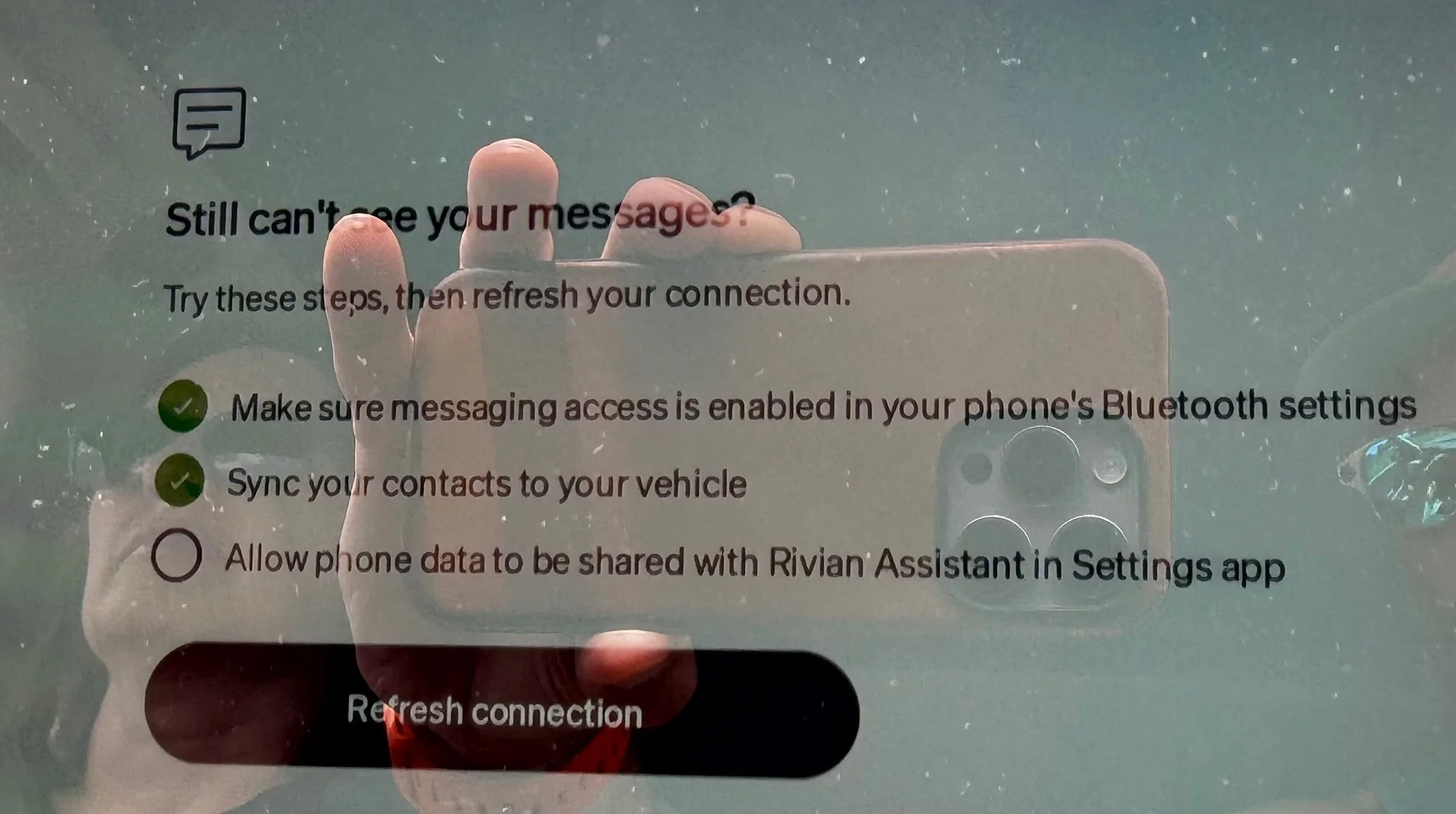
Rivian R1T R1S Allow phone data to be shared with Rivian Assistant in Settings app? IMG_7504
Sponsored


tate16t

Well-Known Member
First Name
Robert
Joined
Apr 7, 2022
Threads
64
Messages
1,396
Reaction score
1,181
Location
NY
Vehicles
2023 El Cap Granite R1S
Occupation
Car Enthusiast
This is from Gemini. I hope this is correct. 😑

To allow your phone data (like contacts and messages) to be shared with the Rivian Assistant, you will need to configure the settings on both your vehicle's Center Display and your phone's Bluetooth menu.

Here is exactly how to do it:

Step 1: Enable Sharing on the Vehicle Center Display
  1. On your Rivian's center display, navigate to Settings > Connect > Bluetooth.
  2. Locate your paired phone in the list and tap the ellipsis (...) menu next to its name.
  3. Ensure that the toggles for "Sync Messages" and "Upload Contacts" are turned ON.
Step 2: Verify Permissions on Your Phone

Your phone's operating system must also explicitly grant permission for Rivian to pull this data.

For iPhone Users:
  1. Open your phone's Settings > Bluetooth.
  2. Find Rivian Audio (or your vehicle's name) and tap the blue "i" (info) icon next to it.
  3. Toggle "Sync Contacts" to ON.
  4. Ensure "Show Notifications" is also enabled so the assistant can read text alerts.
For Android Users:
  1. Open your phone's Settings > Connected Devices > Bluetooth.
  2. Tap the Gear Icon next to your Rivian vehicle.
  3. Ensure the "Contact Sharing" toggle is explicitly turned ON.
Step 3: Enable the Wake Word

To make sure you can actually ask the assistant to access this data via voice control:
  1. On the center display, go to Settings > Apps > Rivian Assistant.
  2. Turn on the large toggle to enable the "Hey Rivian" wake word.
💡 Note: Because this allows the assistant to handle personal data, Rivian requires you to enter your Profile PIN on the 15-inch display when you switch to your driver profile, unless it is automatically bypassed by your Phone Key or Digital Key.

 

Mos Eisley

Well-Known Member
First Name
Chris
Joined
Feb 24, 2026
Threads
12
Messages
235
Reaction score
315
Location
Minnesota
Vehicles
Mazda CX-5 and CX-30
Have you enabled Show Notifications for the Rivian app?
 
OP
OP

LeftMySoulinNM

Well-Known Member
First Name
Bryan
Joined
Jul 9, 2023
Threads
5
Messages
142
Reaction score
119
Location
Iowa
Vehicles
R1S
This is from Gemini. I hope this is correct. 😑

To allow your phone data (like contacts and messages) to be shared with the Rivian Assistant, you will need to configure the settings on both your vehicle's Center Display and your phone's Bluetooth menu.

Here is exactly how to do it:

Step 1: Enable Sharing on the Vehicle Center Display
  1. On your Rivian's center display, navigate to Settings > Connect > Bluetooth.
  2. Locate your paired phone in the list and tap the ellipsis (...) menu next to its name.
  3. Ensure that the toggles for "Sync Messages" and "Upload Contacts" are turned ON.
Step 2: Verify Permissions on Your Phone

Your phone's operating system must also explicitly grant permission for Rivian to pull this data.

For iPhone Users:
  1. Open your phone's Settings > Bluetooth.
  2. Find Rivian Audio (or your vehicle's name) and tap the blue "i" (info) icon next to it.
  3. Toggle "Sync Contacts" to ON.
  4. Ensure "Show Notifications" is also enabled so the assistant can read text alerts.
For Android Users:
  1. Open your phone's Settings > Connected Devices > Bluetooth.
  2. Tap the Gear Icon next to your Rivian vehicle.
  3. Ensure the "Contact Sharing" toggle is explicitly turned ON.
Step 3: Enable the Wake Word

To make sure you can actually ask the assistant to access this data via voice control:
  1. On the center display, go to Settings > Apps > Rivian Assistant.
  2. Turn on the large toggle to enable the "Hey Rivian" wake word.
💡 Note: Because this allows the assistant to handle personal data, Rivian requires you to enter your Profile PIN on the 15-inch display when you switch to your driver profile, unless it is automatically bypassed by your Phone Key or Digital Key.
All of this is done.
 

Sponsored

OP
OP

LeftMySoulinNM

Well-Known Member
First Name
Bryan
Joined
Jul 9, 2023
Threads
5
Messages
142
Reaction score
119
Location
Iowa
Vehicles
R1S
Ok I toggled everything again and now it’s working randomly.


Top